Search everything together
Find open tabs and saved pages by title, URL, Canvas, or group. Search is ready to type as soon as the side panel opens.
 Tabuki
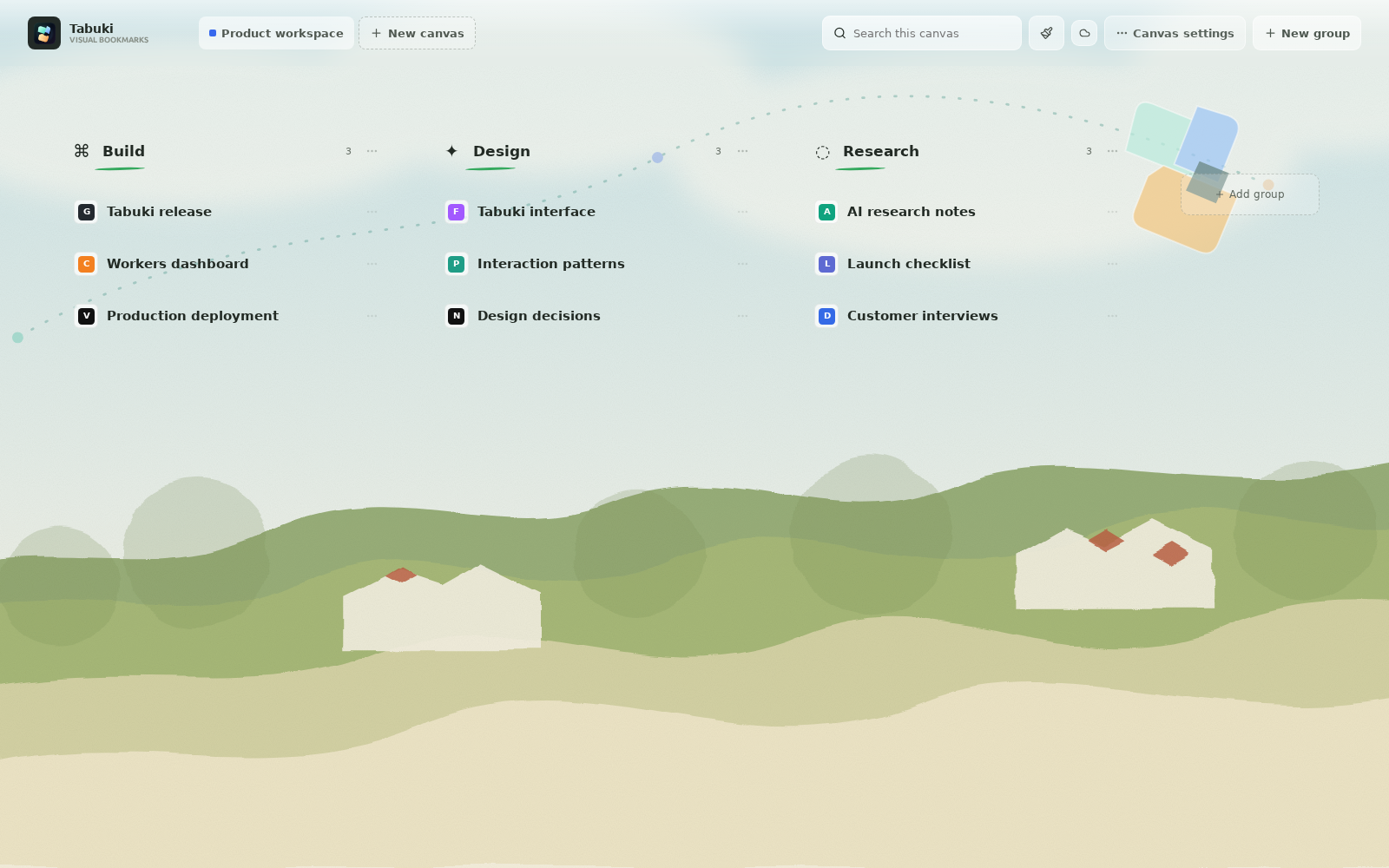
Chrome & Edge side panel extension
Find any page. Keep the useful ones in view.
Search open tabs and saved pages together, then drag the pages worth keeping into a visual Canvas with their real website icons.
Free to start · Local-first · No new-tab replacement
Tabuki in 22 seconds
See unified search, exact drag-and-drop organization, recent-tab cleanup, and global themes in the redesigned interface.
Four core tools
Each part handles a distinct job, while open tabs and saved pages remain searchable from one place.
Find open tabs and saved pages by title, URL, Canvas, or group. Search is ready to type as soon as the side panel opens.
Drag an open webpage into the exact group and position you want. Keep its title or give the saved page a custom name.
The default panel shows only your recent pages. Organize creates native browser groups, while the separate Clean up action closes the least-recently-used ordinary pages.
Apply one global theme across Canvas and the side panel. Workspace data is stored locally and mirrored through Chrome browser sync.
Canvas
A saved page lands where you drop it and keeps the site's own icon. Rename it from the page menu whenever a shorter or clearer label fits your Canvas better.
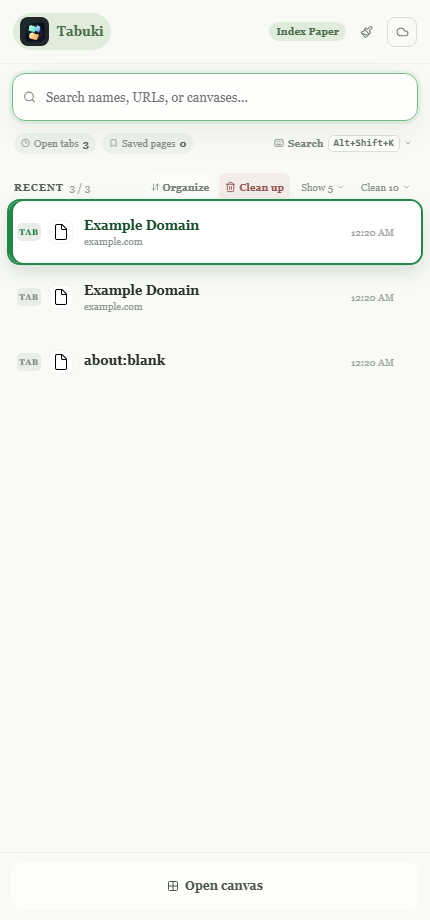
Side panel
The default view stays compact by showing recent activity and saved results. Type a query to search the full set of open tabs without exposing a long secondary page list.
Regional pricing
Saved pages and browser sync are available on every plan.
Free
$0foreverInternational
$2.99per month · cancel anytimeThe extension selects the regional catalog and shows the live Waffo price before checkout.
Local-first storage
Tabuki keeps a local workspace copy and mirrors supported workspace data through Chrome's extension sync storage. Account details are used for purchase access, not as a separate VIP bookmark-sync system.
Read the privacy policyFAQ
It searches every open tab plus saved pages by title and URL. Saved results also include their Canvas and group context.
The default list is deliberately compact. Other open tabs remain available through search instead of occupying a permanent section.
Organize keeps pages open and places them into native browser groups. Clean up closes the selected number of least-recently-used ordinary pages while protecting the active page, pinned pages, and browser-internal pages.
Yes. Chrome lets you customize the side-panel and Canvas shortcuts from its extension shortcut settings page.
Yes. When you drag or save a webpage to Canvas, Tabuki uses that webpage's favicon by default.
Pro is checked against its exact expiry time. Existing content stays in place, while Free creation and theme limits apply immediately after expiration.
Manual installation
Use the Chrome Web Store for automatic updates. The ZIP is available when you need to load this exact build manually.
chrome://extensions in the address bar.manifest.json.Keep the extracted folder after installation. Removing or moving it can disable the manually loaded extension.
Search the live browser. Keep the pages that matter.
Install from Chrome Web Store